
How to assign a work calendar to your users
Work calendars automate work statuses for your organization’s users.
You can read more details about how they work in this article.
⚠️ Remember: A user can be assigned only one work calendar.
Assign a work calendar to a user
- Access Users > User Management from the side menu.
- Click on the 3 dots icon for each user to display their options.
- Select “Edit” to view the user’s settings.
- Assign the work calendar and the configuration will be saved automatically.

💡 By selecting several users from the list and selecting the “Selection” option you can assign work calendars to several users at the same time.
Assign work schedules to users in bulk
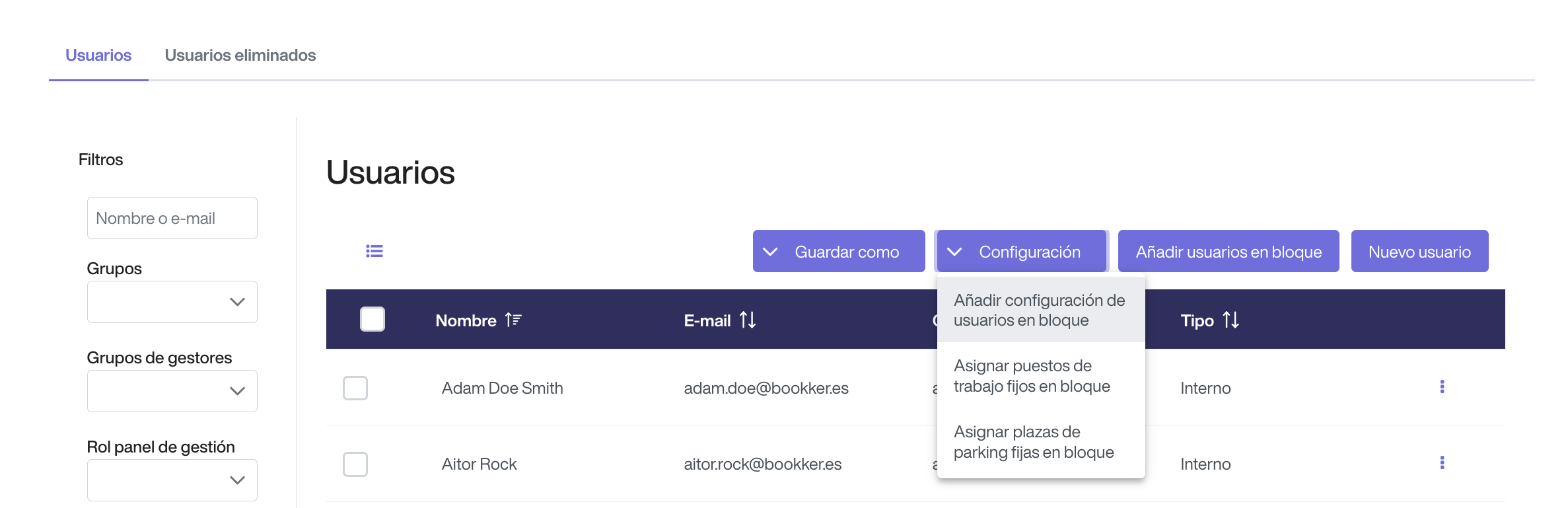
By deploying the “Configuration” option from the top buttons, you can configure several parameters at the same time for users in bulk.
From here you will be able to edit the work calendars in bulk.
You can see how to add bulk user settings in this article.
In this article
Assign a work calendar to a user
Assign work schedules to users in bulk
Have you found your answers?
Thank you for your feedback! We are happy to help you.
Thank you for your feedback! Your feedback helps us to improve our articles.