
Last updated: 18/05/2026
How to apply for a smart parking space.
Smart Parking is a module designed to automate, on a daily or weekly basis, the reservations the organisation’s car park. This feature allows all available parking spaces to be allocated among all requests received from users.
Using the ‘Request smart parking’ option, each user can submit a request for the system to allocate one or more parking spaces.
⚙️ Depending on each organisation’s settings, Bookker will take various criteria into account when determining the final allocation. Find out more about the “Smart parking” module in this article.
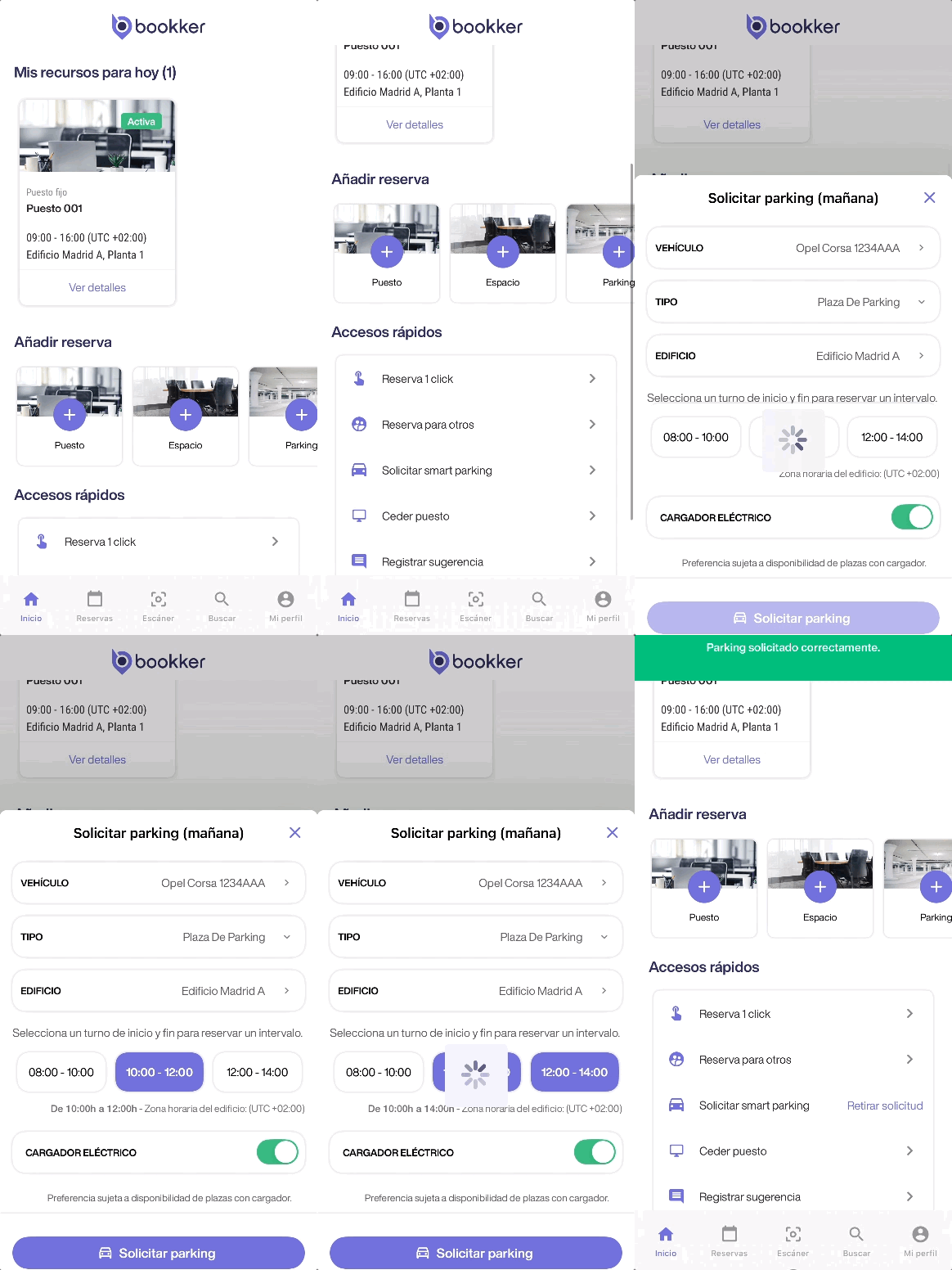
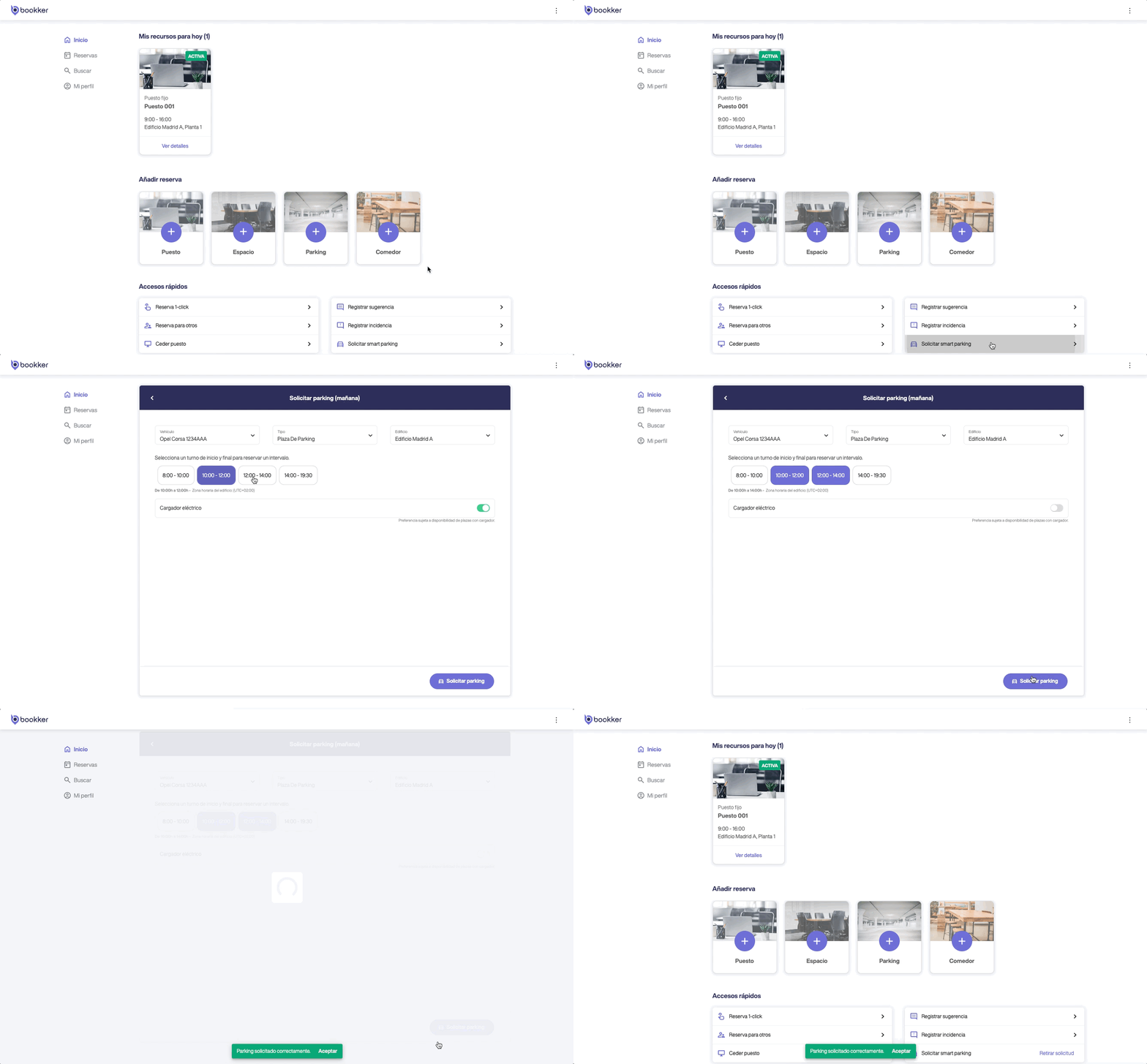
Request a smart parking space via the app (daily mode)
- Access the “Request smart parking” form via the quick links on the Home screen.
- Fill in the required fields for the vehicle, location and time.
- Click on ‘Request parking’.
- Once the allocation of parking spaces has been completed, and only if you have been allocated a space, you will receive a confirmation by post containing the details of your parking reservation.
⚡️ If you tick the ‘Electric charging point’ option on your application, please note that this is a preference subject to the availability of spaces with charging points.
Request a smart parking space via the app (weekly mode)
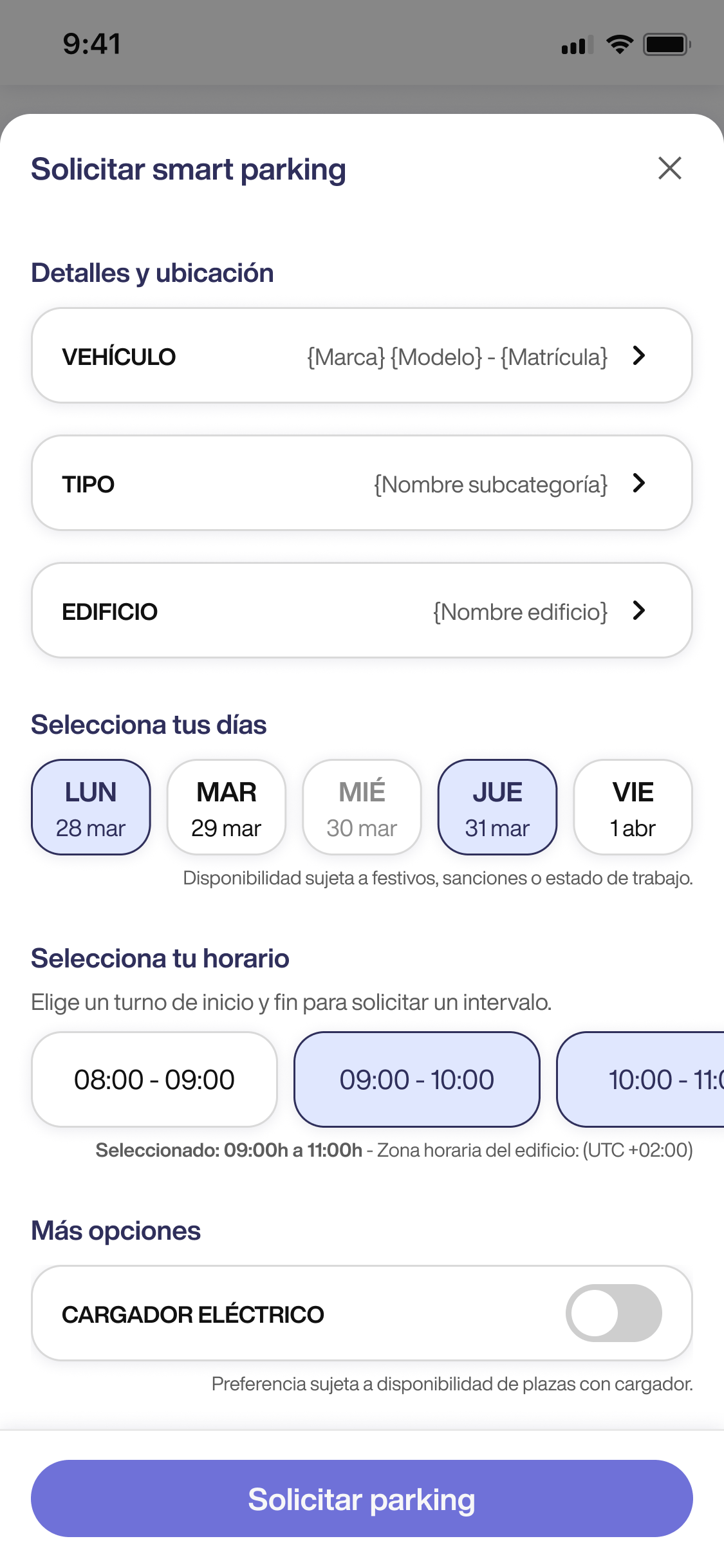
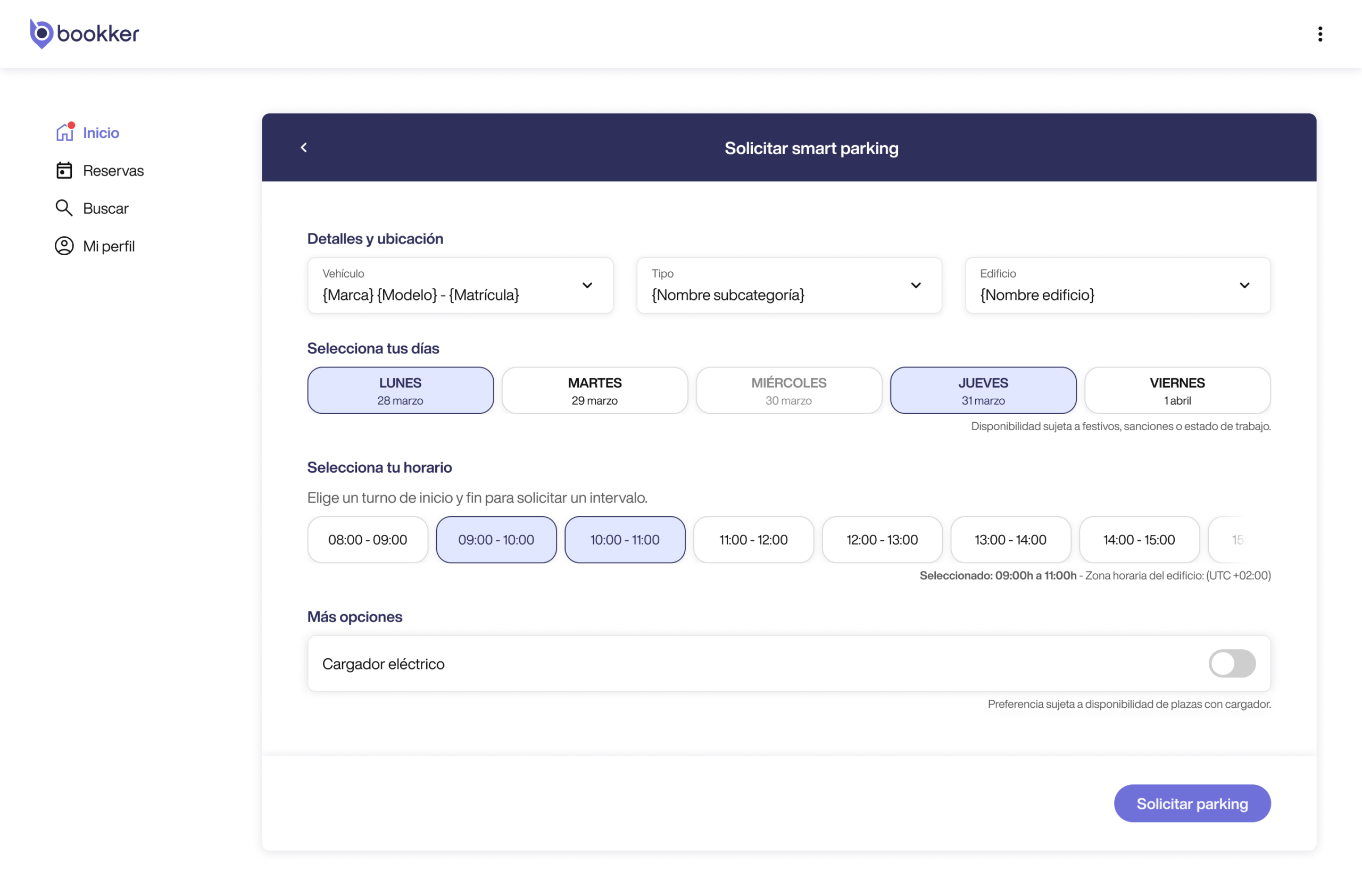
Instead of requesting parking or booking on a day-to-day basis, the weekly smart parking mode allows you to request parking spaces for several or all days of the coming week with a single request.
- Access the “Request smart parking” form via the quick links on the Home screen.
- Fill in the required fields for vehicle, location, days of the week and time slots (the available days and time slots depend on the organisation’s settings).
- Click on ‘Request parking’.
- Once the allocation of spaces has been finalised, and only if you have been allocated spaces, you will receive a confirmation email containing details of your parking reservations.
👀 Submitting an application does not immediately reserve places. The system allocates places automatically when the allocation routines configured by your organisation are run.
🅿️ Depending on the number of applications received and the availability of parking spaces, the system may allocate you a space for all the days selected in your application, or only for some of them.
Check the status and history of my parking applications
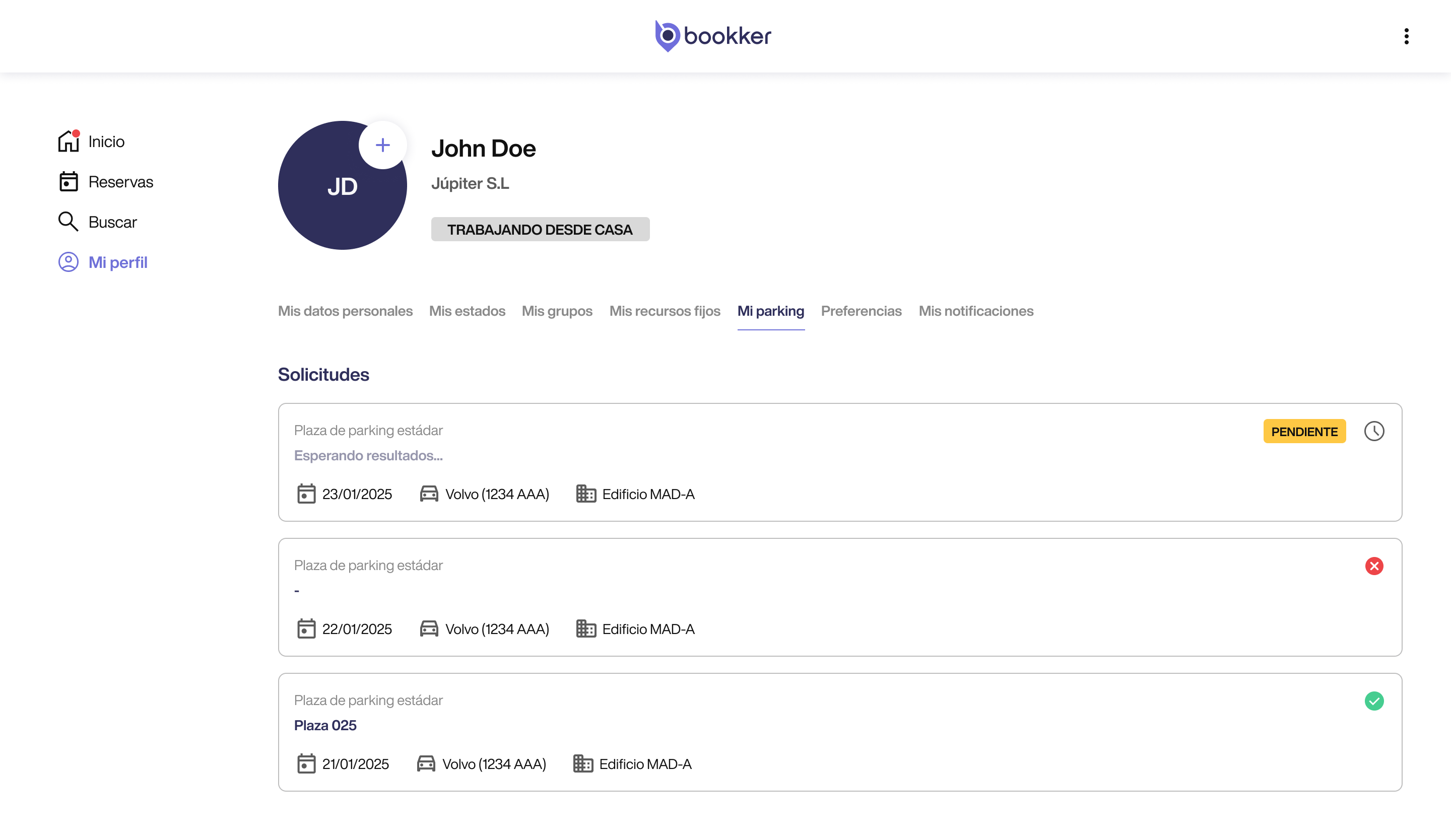
- Go to My profile > My parking from the app’s user profile.
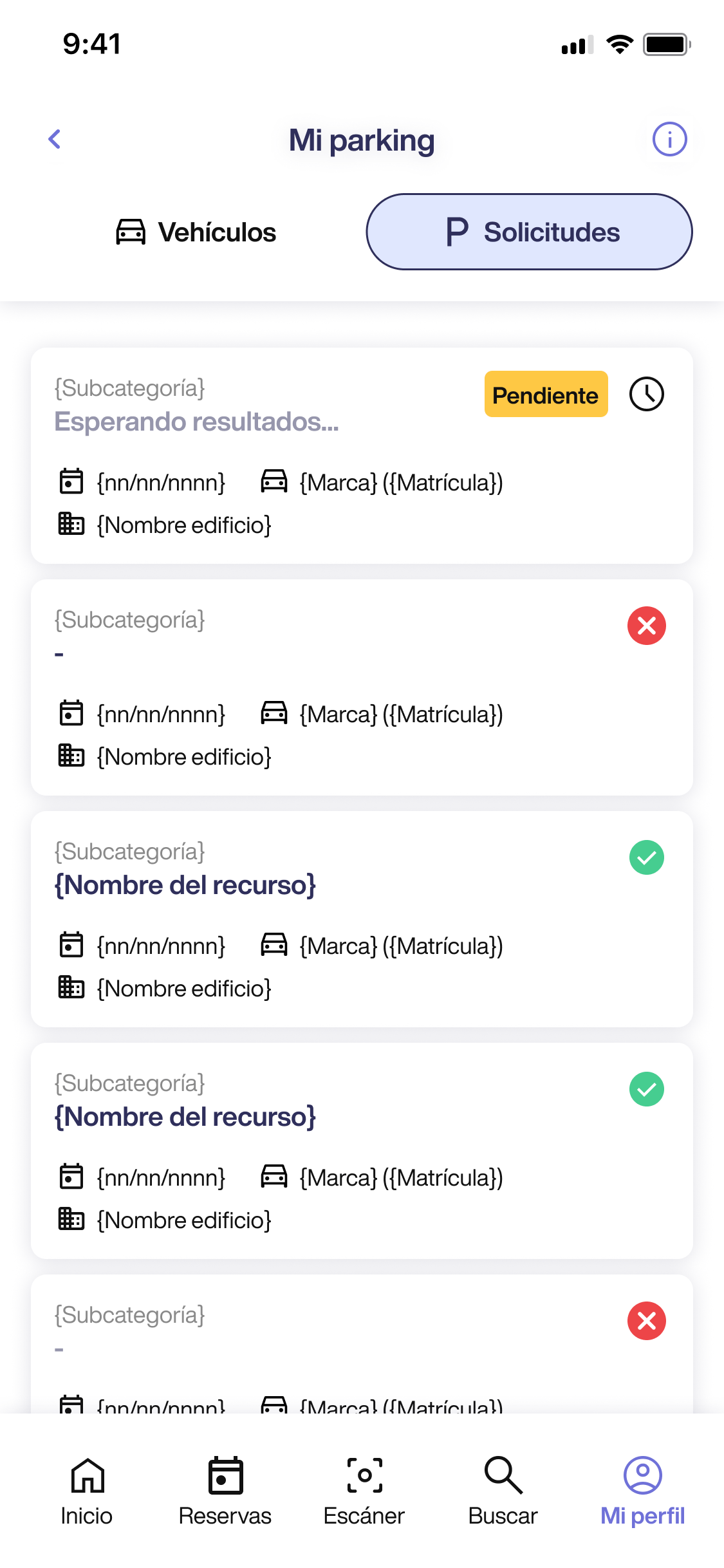
- From the “Requests” tab, you can view details of your most recent requests.
There are three possible statuses for a parking application:
🕦 – Pending: The allocation process is still ongoing; results are awaited.
✅ – A parking space has been allocated to you.
❌ – You have not been allocated a parking space.
Edit or cancel my smart parking application
- From the quick links on the Home screen, you can access the edit form to amend or cancel your request.
- If the allocation process hasn’t started yet, you can edit or cancel your application here. However, if the allocation process has already started, you’ll have to wait for the results and cancel your parking reservation if you won’t be needing it.

👥 Don’t forget to cancel your booking if you won’t be using it, so that the parking space becomes available again for other users to use or book.
Frequently asked questions.
Hidden accordion! DO NOT TOUCH. ⚠️Leave always at 1st posición⚠️
Lorem ipsum
Can I “Apply for smart parking” if I don’t have a registered vehicle?
If your organisation has the ‘Vehicle required’ setting enabled, you will need to have at least one registered and validated vehicle in order to request smart parking. If this setting is not enabled, you will not need to register any vehicles.
Why can’t some days be selected?
If a date appears as unavailable on the smart parking application form, this may be due to the following reasons:
- It’s a public holiday for your organisation.
- You have an active penalty.
- Your employment status or internal rules do not allow you to make bookings on that day.
Can I “Request smart parking” if I have a penalty or my employment status prevents me from making bookings?
No, a user cannot request smart parking if they have a parking fine for that day or if their work status is set in such a way that they are not permitted to make bookings. Nor can they request parking on public holidays for the organisation. If any of these circumstances apply, a message on the request form will inform the user. Furthermore, if any of these circumstances arise after a request has been submitted, Bookker will reject the request so as not to allocate a parking space to the user.
What happens when two users have the same vehicle registered and request smart parking?
Bookker does not allow simultaneous bookings for the same vehicle (registration number), so only one of the two users who have requested a parking space will be allocated a space when the allocation process takes place.
Can I create a manual booking for a ‘Smart parking’ space?
Until all parking spaces have been allocated, you will not be able to manually reserve any ‘Smart parking’ spaces. However, if a user cancels their allocated booking after the allocation process, that space will become available (for that day only) for other users to reserve.
Can I request smart parking after the delivery has been completed?
No. Once the allocation routines set up by the organisation have been run, you will no longer be able to request smart parking until the start of the application cycle or period for the new week.
Can I edit my allocated parking space after it has been assigned?
If the parking allocation system has assigned you a space, you will only be able to change the vehicle in your booking.
Why haven’t I received a notification that Smart Parking has started?
This can happen for three reasons:
-
- This notification is turned off. You can check and configure it under My Profile > Notifications.
- If you have already submitted a smart parking application, you will not receive a reminder about the start of the allocation process.
- You haven’t requested smart parking yet. No user will receive this notification until they have requested smart parking at least once.
In this article
Request a smart parking space via the app (daily mode)
Request a smart parking space via the app (weekly mode)
Check the status and history of my parking applications
Edit or cancel my smart parking application
FAQs
Have you found your answers?
Thank you for your feedback! We are happy to help you.
Thank you for your feedback! Your feedback helps us to improve our articles.