
How to make a reservation for others from the app.
The reservation for others consists of making reservations of workstations for other users of the organization. This system allows you to coordinate and assign desks to the other employees from your organization or guest users you want to add.
🔐 Reservation for others will only be available for users who have configured the role of application role of “Supervisor”.
The booking for others will not take into account the existing bookings of employees you are reserving for nor their work status. Searching for available resources will only be limited by the rules of each resource and holidays.
Step 1: Create a reserve for others.
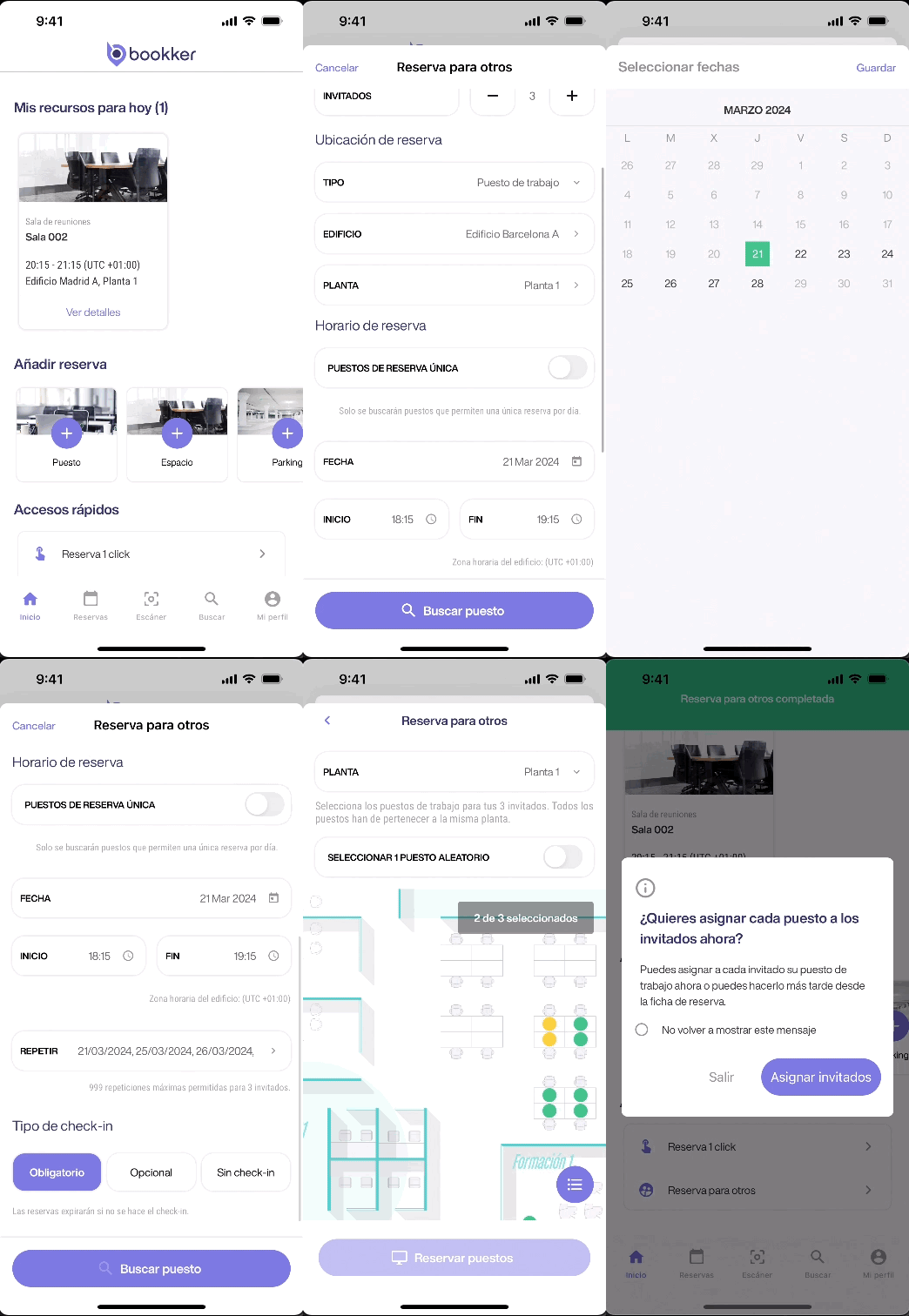
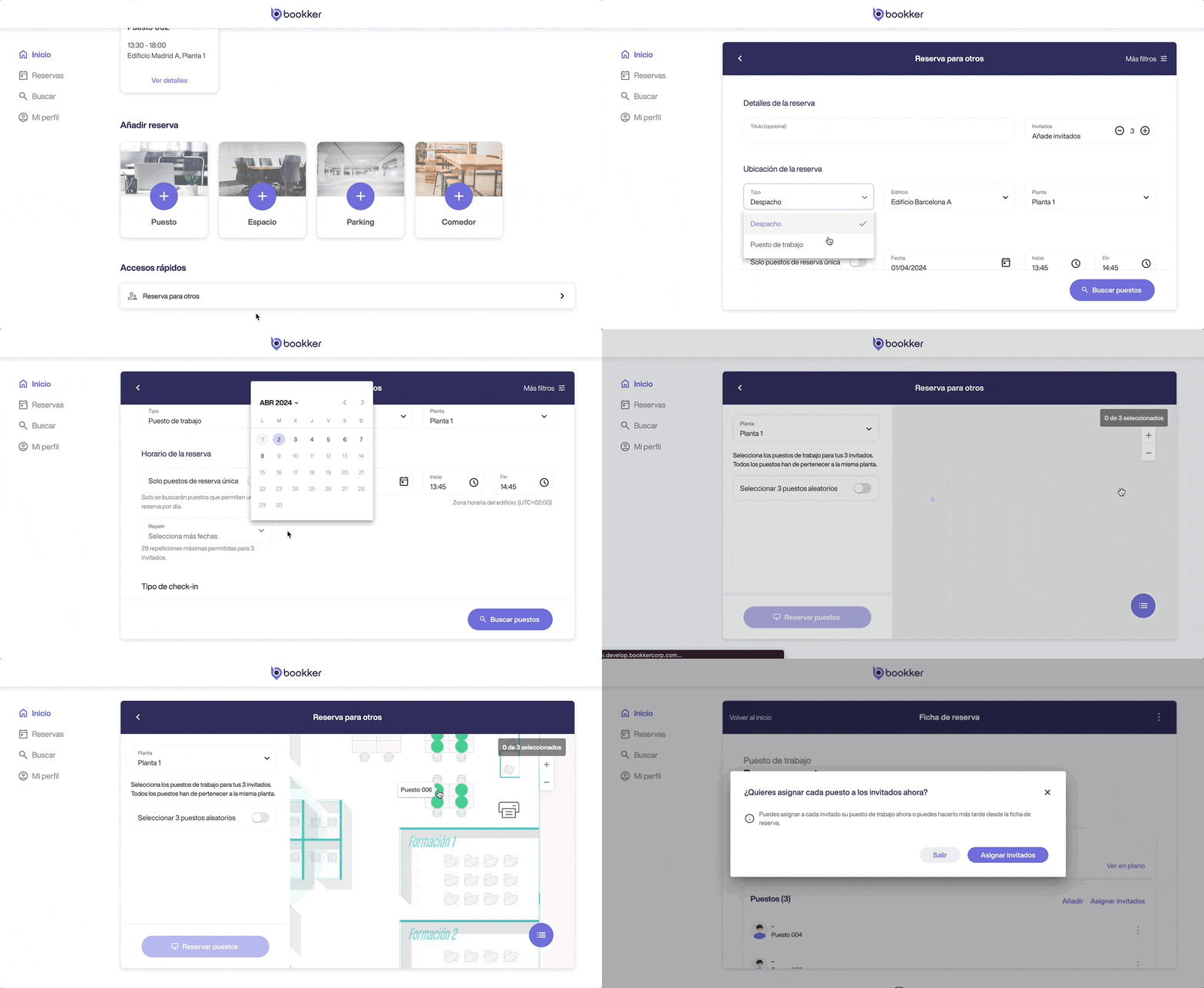
- Access the form “Reservation for others” form from theshortcuts on the Home screen.
- Fill in the required fields in the reservation details, location, schedule and check-in type sections.
Click on “Search for places”. - In the next view, select the workstations for your guests.
You can do this randomly, or by selecting them manually from the map or resource list. - Click on “Reserve a seat”.
- Once the booking is completed, a dialog will be displayed offering you to assign your guests now or do it later from the booking form.
⚠️ All positions must be at the same floor.
🔄 The maximum number of number of repetitions allowed will depend on the number of guests selected.
Step 2: Assign guests to each desk.
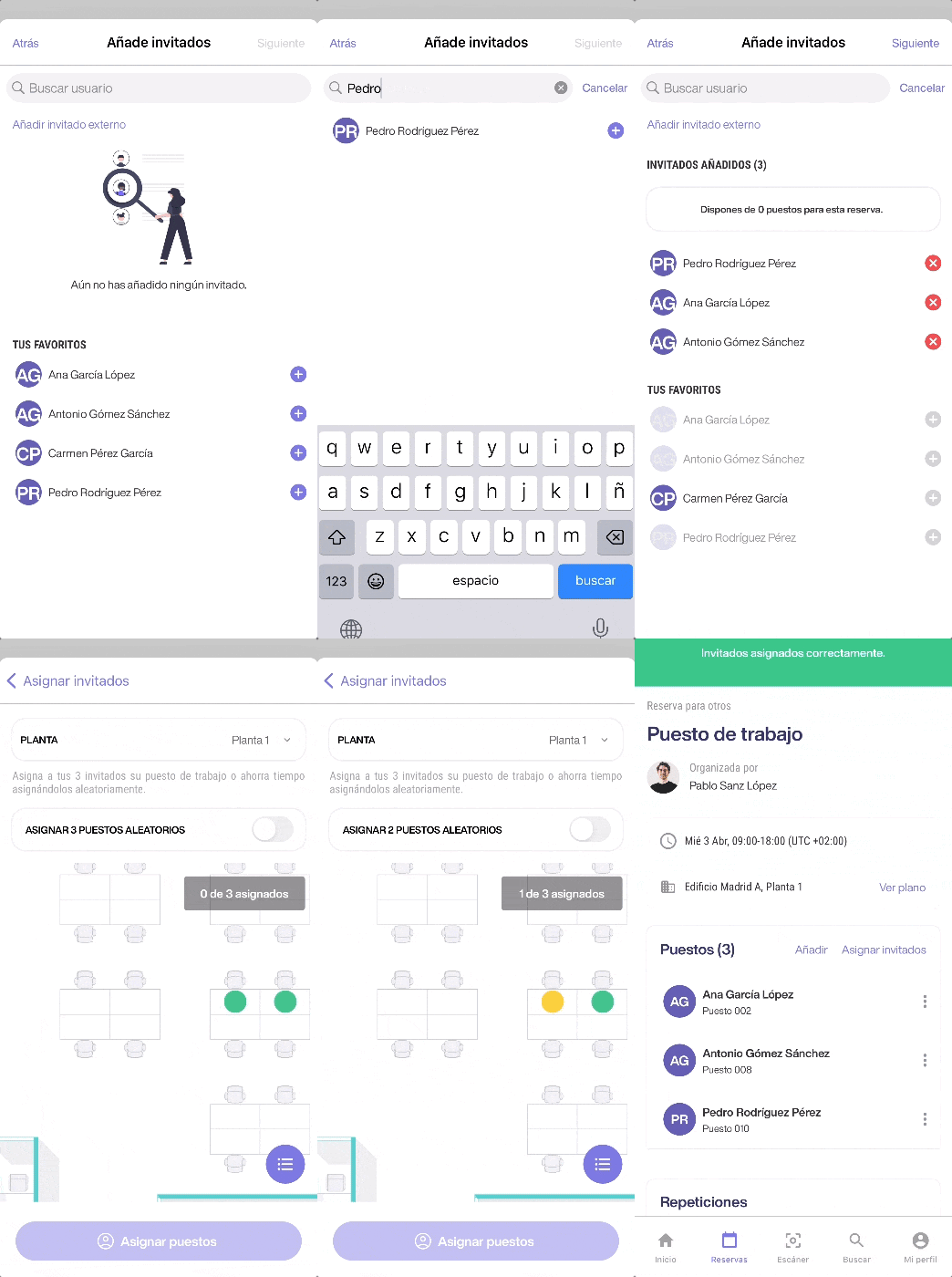
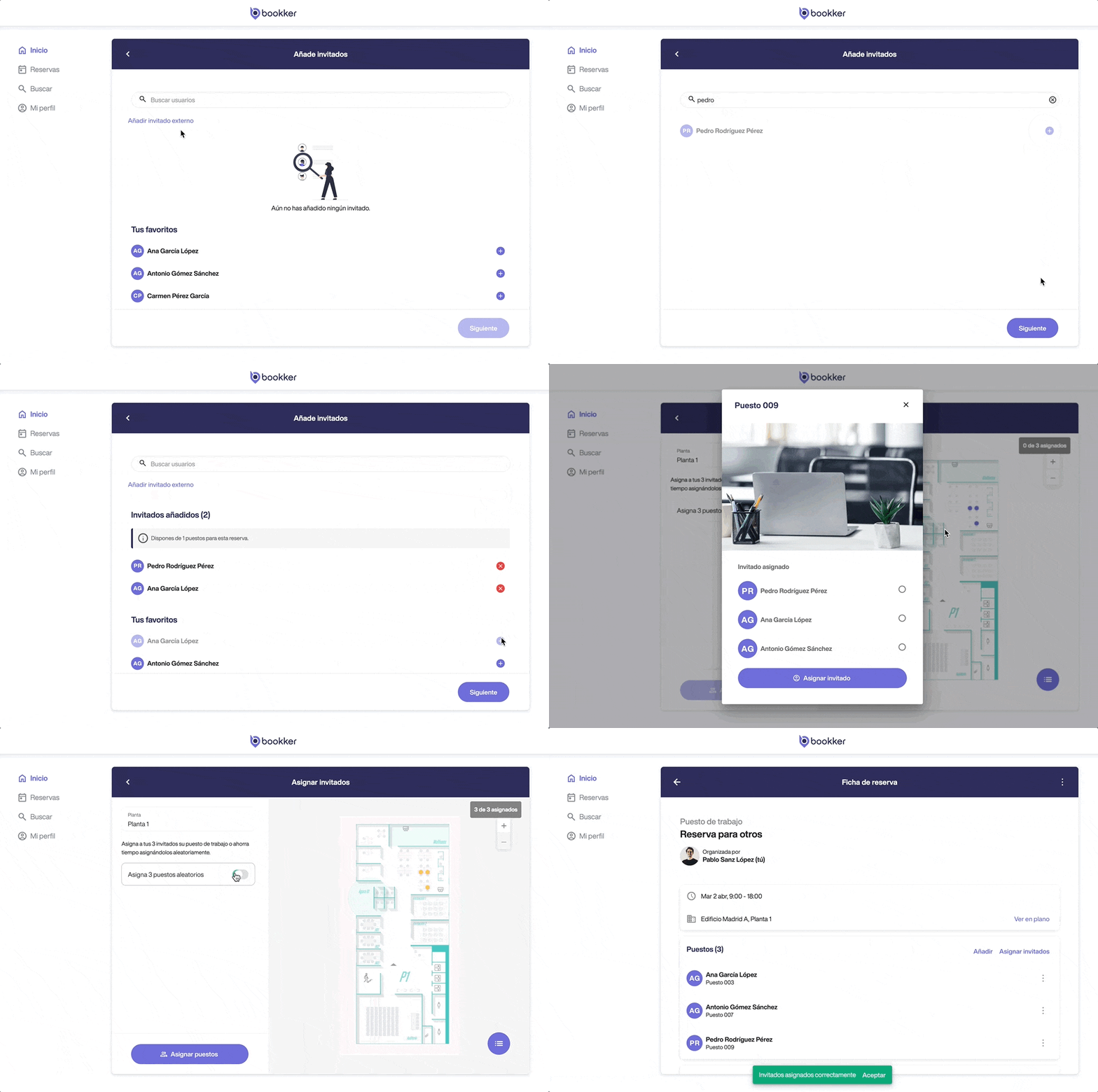
- Click on “Assign guests” from the previous dialog or from the booking form.
- Then add the guests to whom you want to assign a workstation and click “Next”.
- To assign your guests to desks can de done randomly or by assigning them manually from the map or resource list. Click on each resource, select a guest and click “Assign guest”.
- Once all the employees have been assigned to their desks, click on “Assign Posts”.
🚨 If the booking has started and there are repeats, the previous guest assignment will apply from the next repeat.
If you only want to assign one employee or guest, locate a free seat from the booking form, display its options from the 3 dots icon and click on “Assign guest”.
In this article
Step 1: Create a reserve for others.
Step 2: Asign the guests to each position workstation in a reserve for others.
Have you found your answers?
Thank you for your feedback! We are happy to help you.
Thank you for your feedback! Your feedback helps us to improve our articles.