
How to make a parking reservation from the app.
The parking reservation allows you to secure in advance a parking space for your vehicle to be used by yourself.
Depending on the configuration of your organization, you may need to register at least one vehicle to make parking reservations.
🚦 In addition, if your organization requires it, your vehicles must be validated before you can make reservations in each requested building.
Make a parking reservation at any available resource.
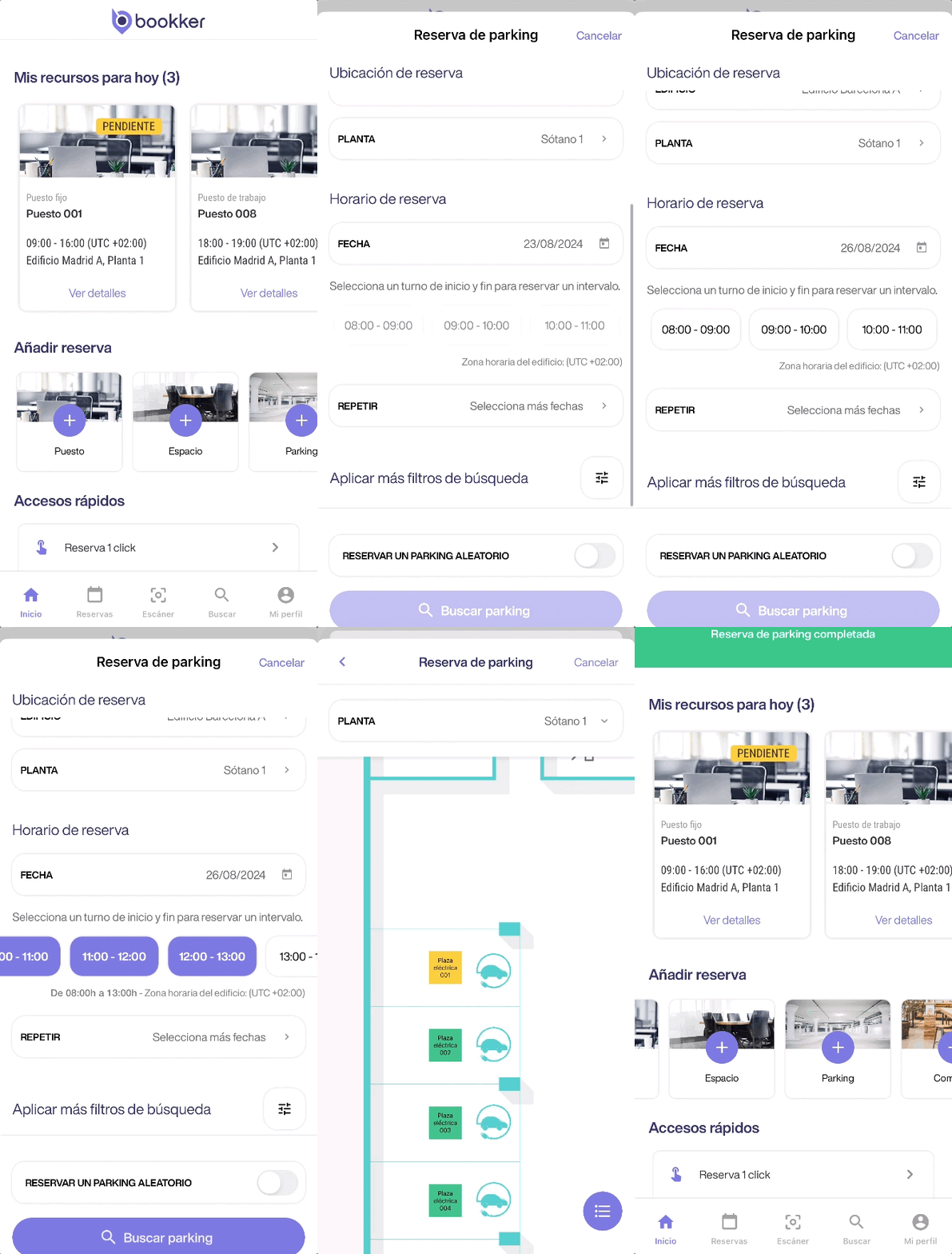
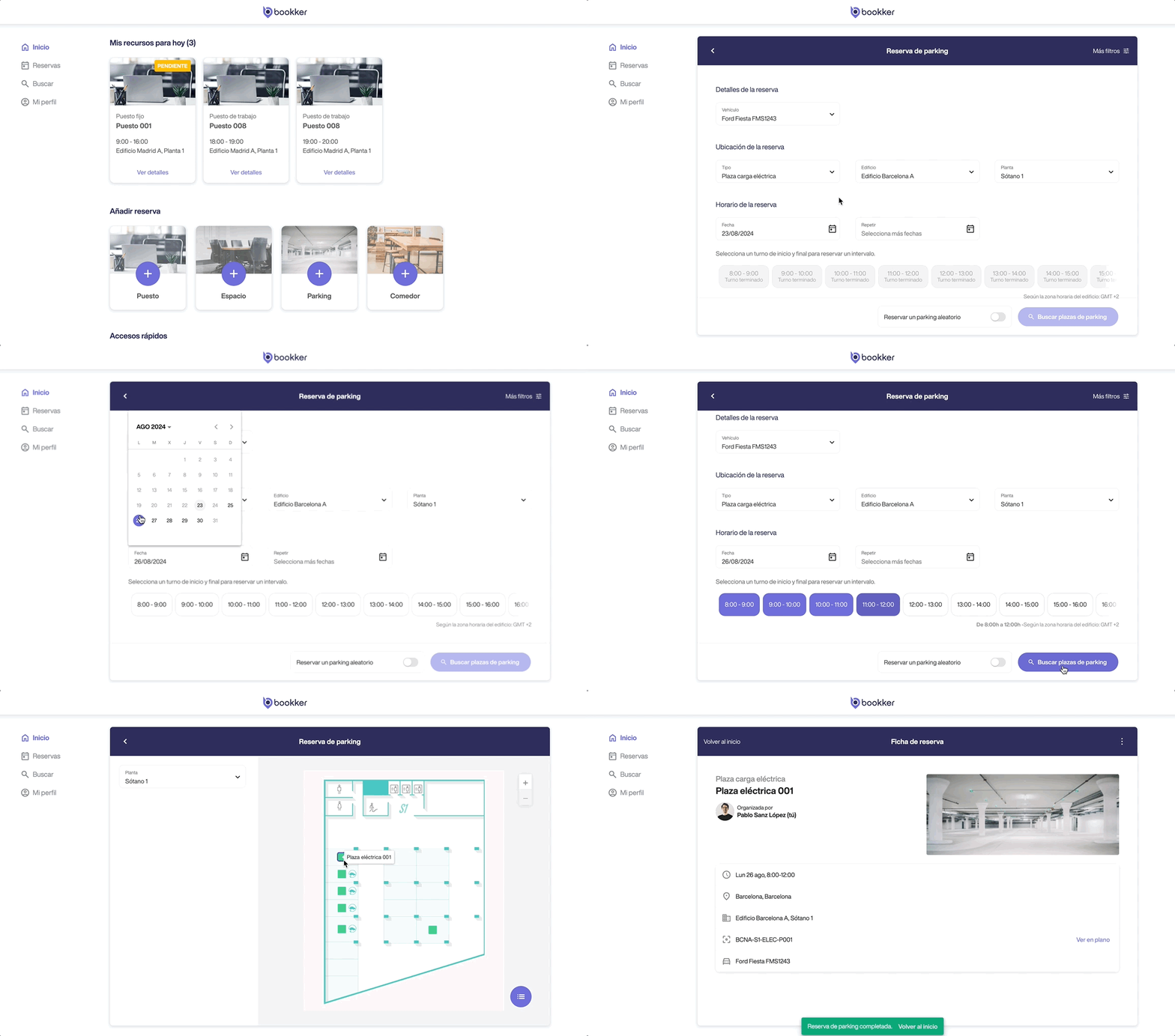
- Access the“Parking Reservation” form from the Home screen.
- Fill in the fields You will find the necessary information in the booking details, location and schedule sections (select a start and end time to book a slot).
Click on “Search parking”. - In the next view, select the parking space you want to reserve.
You can do it manually from the map or resource list. - Finally, click on “Reserve”.
🚀 To speed up the process, you can check the “Reserve a random parking” option in the form to make an automatic reservation to make an automatic reservation with the selected parameters.
⚙️ Also, if you have configured your preferences in your profile, the form will already be filled out according to these preferences.
See how to customize them in this article.
Make a parking reservation at a specific resource.
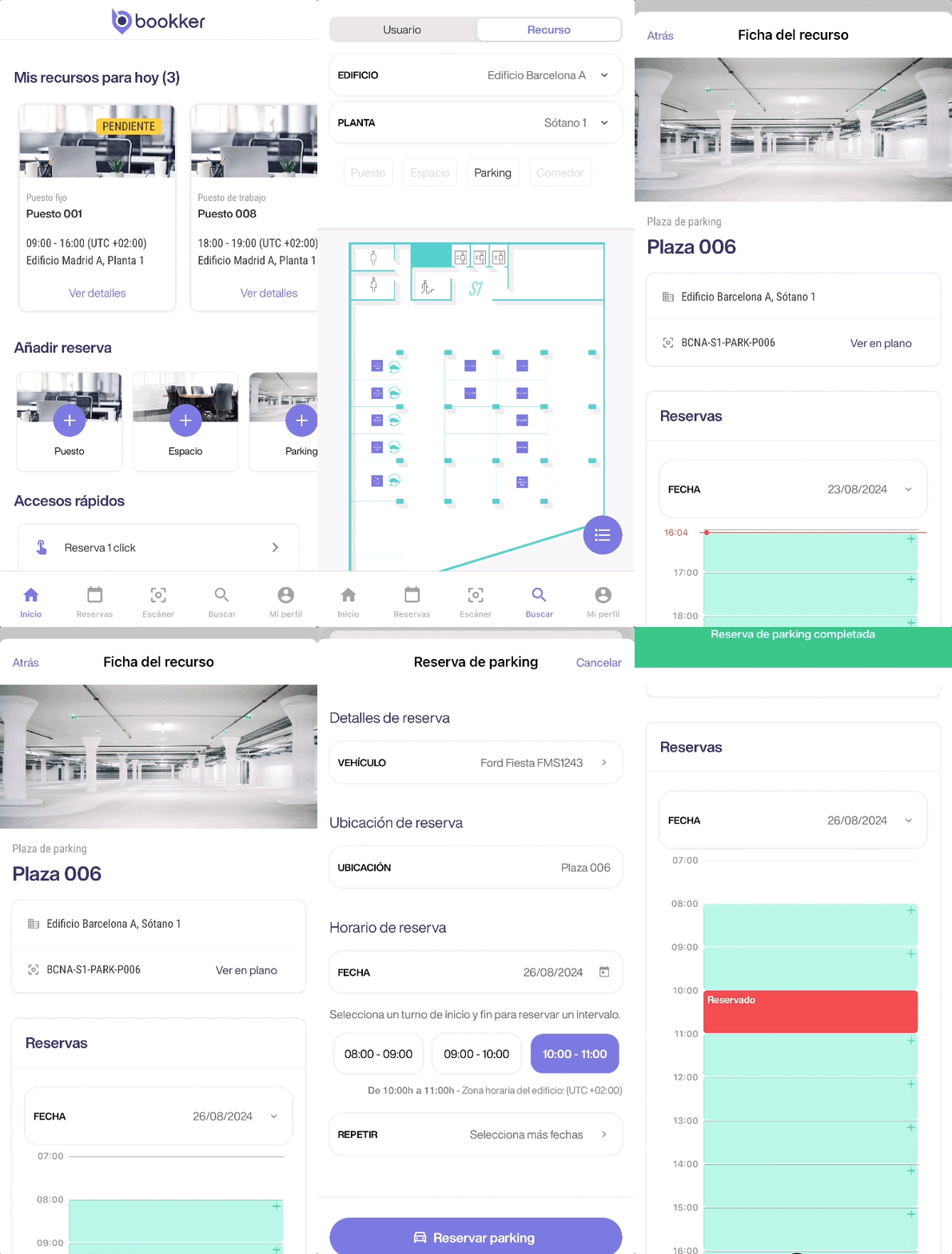
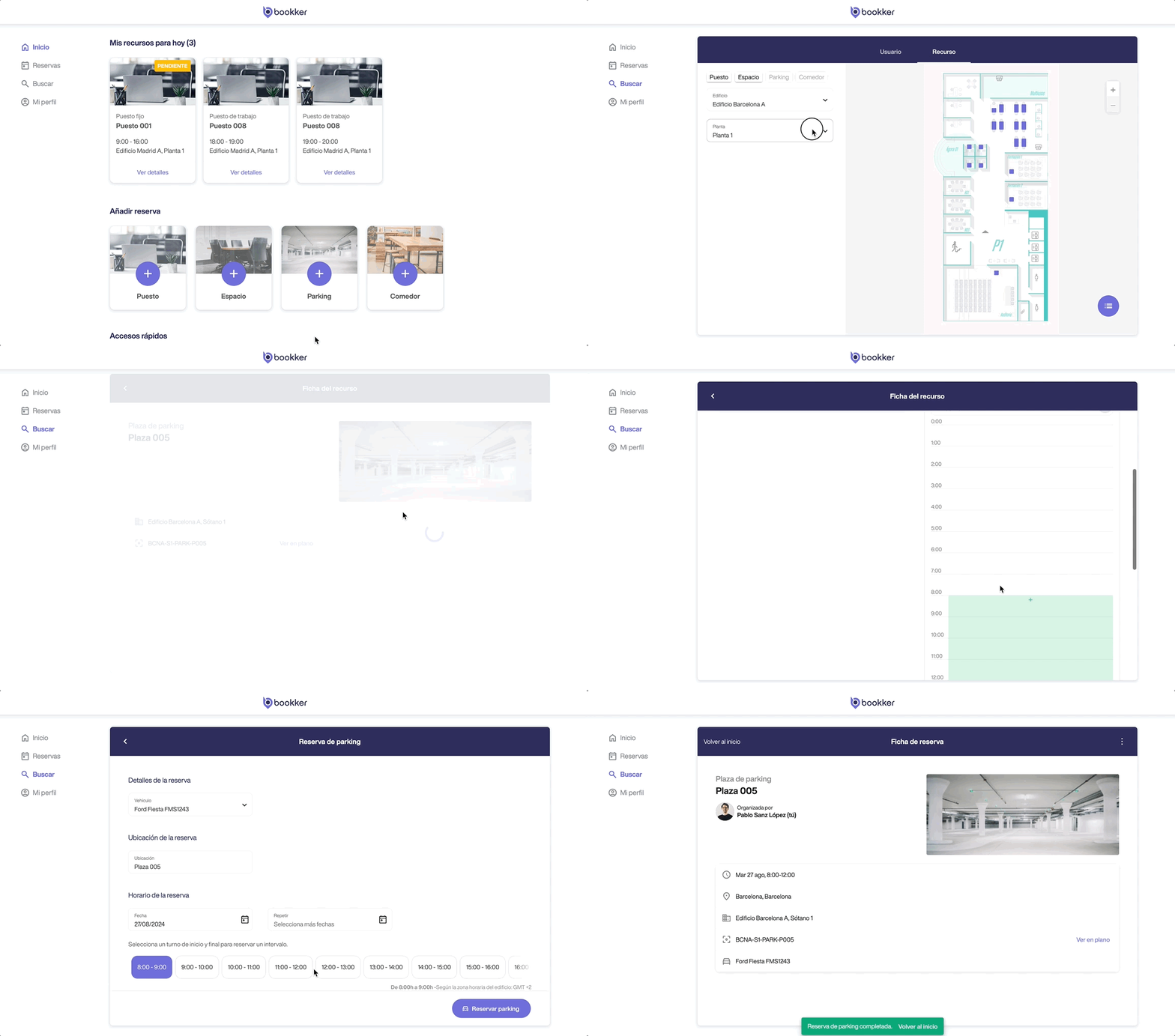
- Access the Search section from the app menu and navigate to the Resources tab.
- Select the location and type of resource you want to consult.
- Locate and access the resource file. From here click on an available time slot in the calendar to make a reservation.
- Fill in the form fields with the required data and click on“Reserve parking”.
In this article
Make a parking reservation at any available resource.
Make a parking reservation at a specific resource.
Have you found your answers?
Thank you for your feedback! We are happy to help you.
Thank you for your feedback! Your feedback helps us to improve our articles.