
Bookker app and webapp interface.
From the Bookker app, users can make and consult the details of their reservations, search for other users or resources, customize their calendars and much more.
Learn how the different sections of our applications are distributed.
This article provides a detailed summary of how to access the app, how to navigate through the menu and a brief description of the available sections.
🚀 Depending on the modules contracted or the configuration of each organization, the appearance and sections that appear in the app may vary.
Access the app
Once you have downloaded the app on your mobile, you will be able to log in with your user account and password.
You can also use our web application by accessing with your credentials from here.
⚠️ Remember that you will only be able to access to the applications only after your company has registered you as a user.
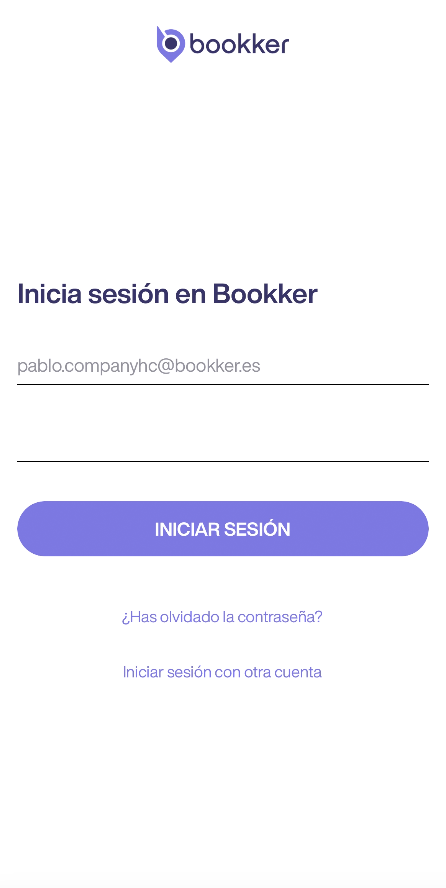
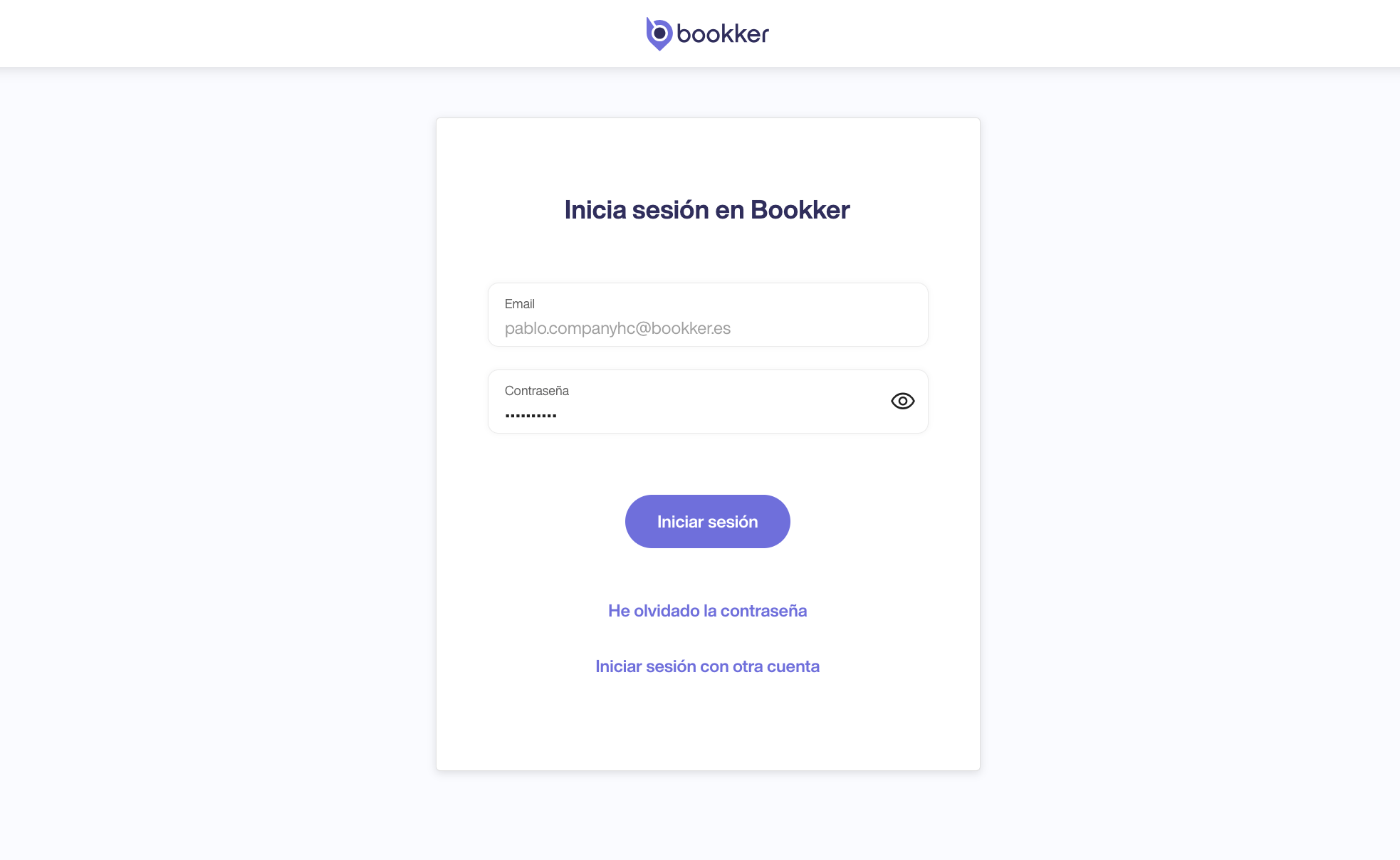
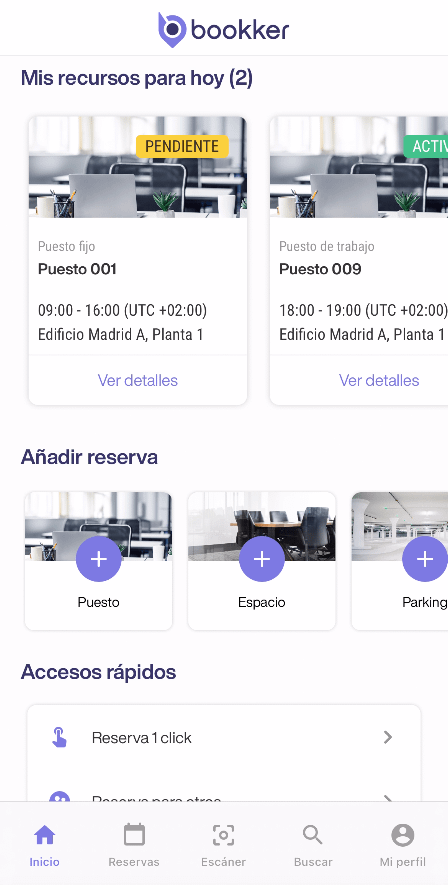
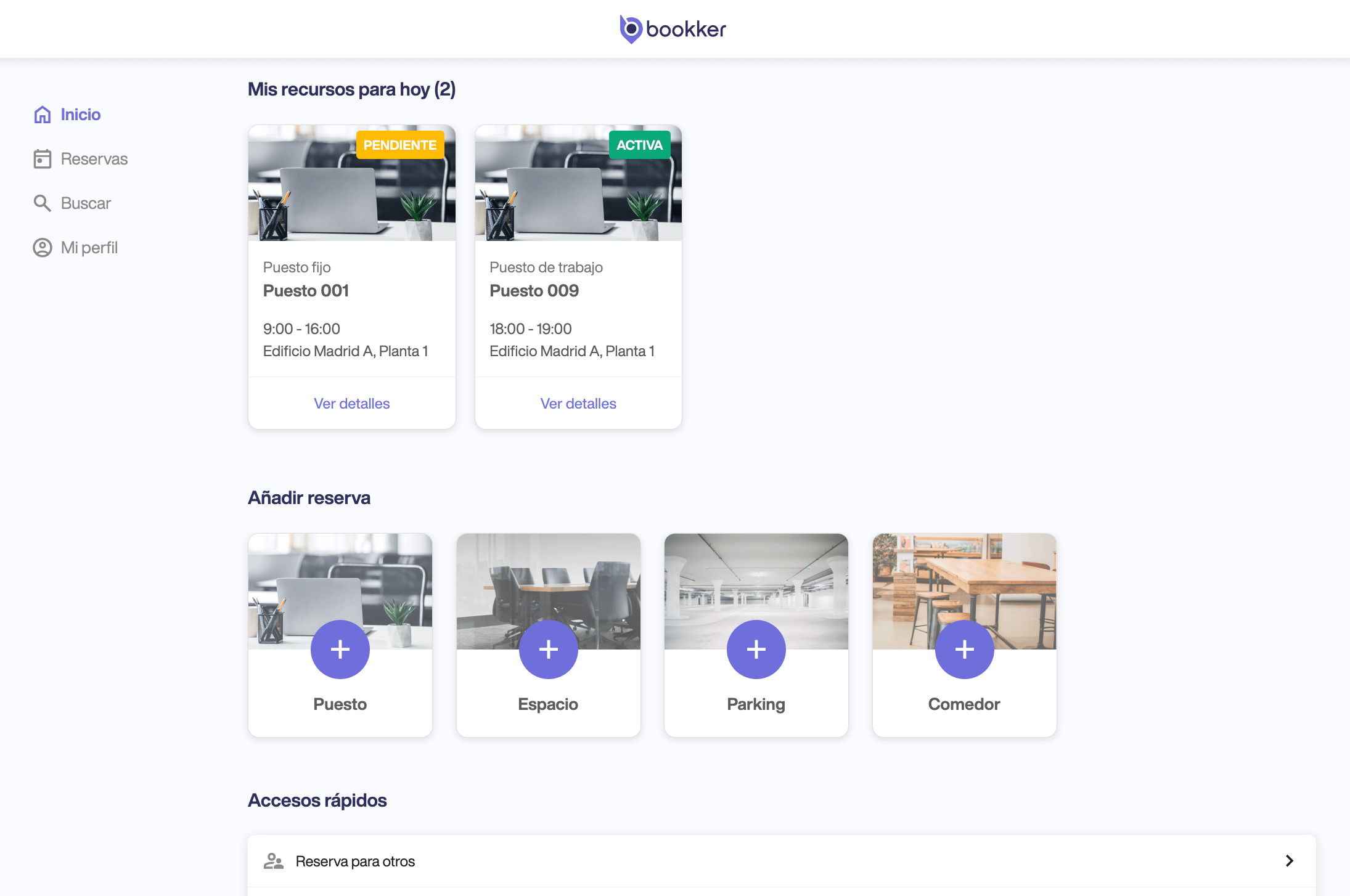
Interface of the main screen of the applications
Once logged in, you will be directed to the main screen of the app.
In the following image you can see how the app is organized and its different areas:
-
- My resources for today: In this section you will see a summary of each of your allocated resources or reservations for today.
- Add reservation: From here you can access the reservation forms for the different resources available to your organization (workstations, spaces, parking or canteen).
- Shortcuts: Depending on the configuration of your organization, here you can display a list of functionalities such as booking for other users, registering incidents or suggestions, assigning your resources, etc.
- Main menu: You can use it to navigate through the different sections of the application.
Sections of the main menu of the app
-
- Home.
Haciendo clic aquí puedes acceder o volver a la pantalla principal. - ReservationsFrom this section you can consult and manage all your current and future reservations.
- Scanner: This section accesses your device’s camera to interact with Bookker tags.
- Search: In this section you can consult the information and occupation of resources and other users.
- My profile. Here you can consult and configure the information (work status, calendars, vehicles…) of your user profile.
- Home.
📸 The scanner section will only be available on mobile devices.
In this article
Access the app
Applications main screen interface
Sections of the main menu of the app
Have you found your answers?
Thank you for your feedback! We are happy to help you.
Thank you for your feedback! Your feedback helps us to improve our articles.